OpenTTD Server#
OpenTTD is a fun and free game: https://www.openttd.org/ This tutorial shows how to set up a server for multiplayer.
Screenshots: https://www.openttd.org/screenshots
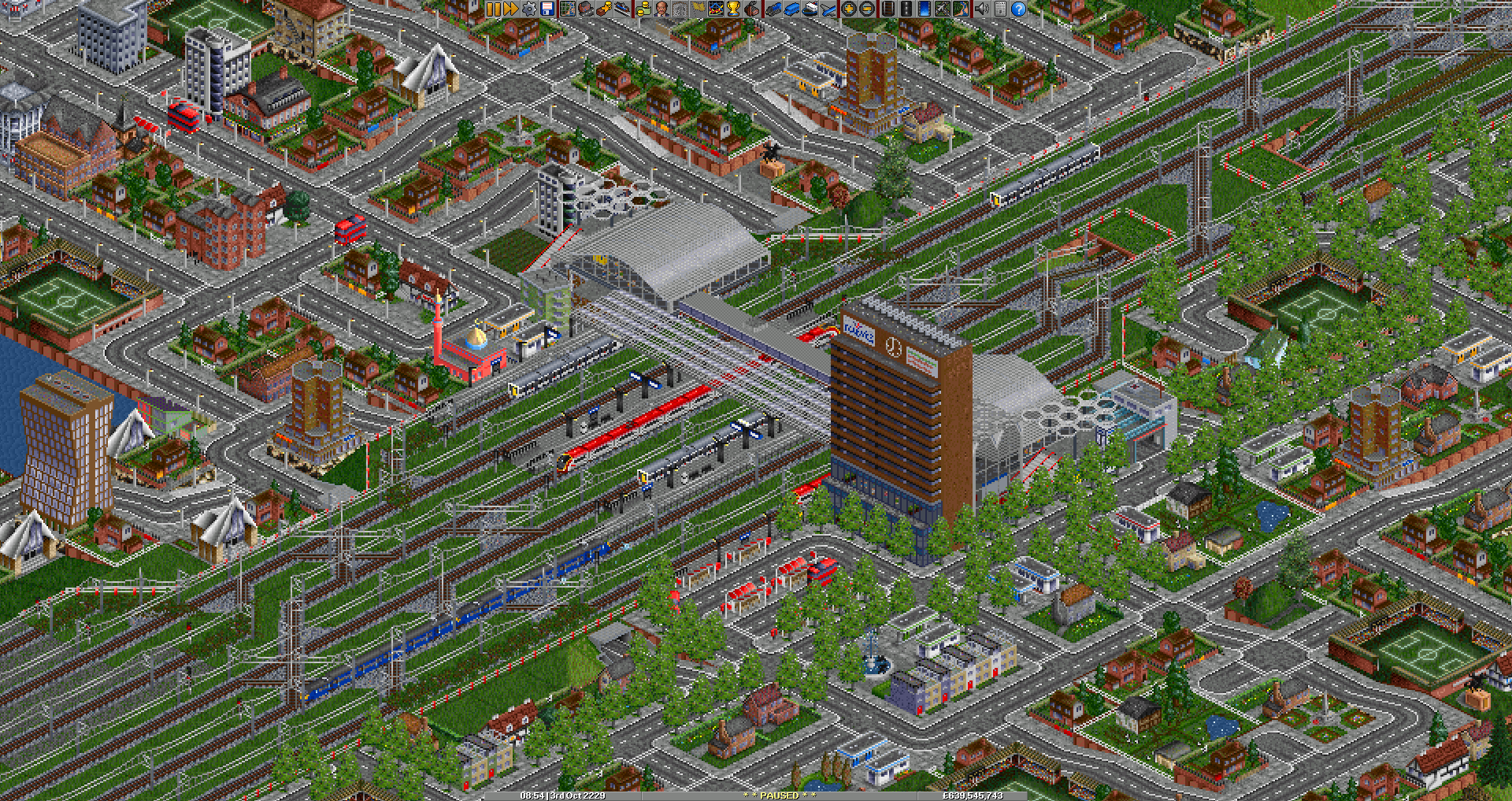
Save file creation#
Create the save file using the client. When creating the save file, I recommend changing some of the defaults. Some of these settings cannot be changed later.
Choose a climate: https://wiki.openttd.org/en/Manual/Climates
Add mod “New GRF” - “Some vehicles never expire”
Terrain type: “Very Flat” - we don’t like terrain that is super hilly
Make all the map edges water
Flat area around industries: 4 tiles
Settings (some of these can be changed in openttd.cfg later)
When paused allow: “all actions” (
construction.command_pause_level 3) build in pause * Note: This setting does not affect network games, but I’m leaving it here for completenessAirports never expire: on (
station.never_expire_airports false) * Cannot be changed on the server, must be set in save fileVehicles never expire: on (
vehicle.never_expire_vehicles falsenever expire vehicles) * Cannot be changed on the server, must be set in save fileVehicle breakdowns: none (
difficulty.vehicle_breakdowns 0) vehicle breakdownNumber of plane crashes: reduced (
vehicle.plane_crashes 0) plane crashesEnvironment > Authorities
Town council’s attitude towards area restructuring: Permissive (
difficulty.town_council_tolerance 0) linkTowns are allowed to build grade crossings: Off (
economy.allow_town_level_crossings false) * Cannot be changed on the server, must be set in save file
Town cargo generation: Quadratic (
economy.town_cargogen_mode 1)
Commands for above: (These commands exclude settings that cannot be changed in a network game)
set difficulty.vehicle_breakdowns 0
set difficulty.plane_crashes 0
set difficulty.town_council_tolerance 0
set economy.town_cargogen_mode 1
saveconfig
Server Setup#
You should generate a .sav file locally using the OpenTTD client.
cd /opt/containers/
# Replace "MyGame" with something of your choosing here and in the configuration below
mkdir -p openttd/MyGame
cd openttd/MyGame
mkdir -p openttd/save/autosave/
mv YOUR_SAVE_FILE.sav openttd/save/autosave/
chown -R 2000:2000 openttd
Now you are ready to edit docker-compose.yml. Put these contents in that file.
version: "3.7"
services:
  openttd-MyGame:
    image: bateau/openttd:12.2
    container_name: openttd-MyGame
    restart: unless-stopped
    ports:
      - "3979:3979/udp"
      - "3979:3979/tcp"
    environment:
      - "loadgame=true"
      # savepath is not settable as an environment variable, which is why we map both volumes below
      - "savename=main.sav"
      - "PUID=2000"
      - "PGID=2000"
      - "XDG_CONFIG_HOME=/home/openttd/.config"
      - "XDG_DATA_HOME=/home/openttd/.local/share"
    volumes:
      - ./openttd:/home/openttd/.openttd  # the bateau/openttd script will only look in this directoy for save files
      - ./openttd:/home/openttd/.local/share/openttd  # openttd itself will use this directory for its save files and other files
      - ./config:/home/openttd/.config/openttd  # openttd uses this directory for openttd.cfg, secrets.cfg,p private.cfg
    tty: true
    stdin_open: true
Note
If something doesn’t work with the above directories, you can check out the documentation for the weirdness that is OpenTTD’s directorys: https://github.com/OpenTTD/OpenTTD/blob/master/docs/directory_structure.md. You can see an issue talking about directory weirdness here: https://github.com/OpenTTD/OpenTTD/issues/8073
Now you can start the server using docker compose up -d.
It should be easy to connect to the server, but allowing players to do anything can be difficult.
I found that you must attach to the running container to issue commands to set the RCON password so players can execute commands to pause the game.
(This is why we have tty: true and stdin_open: true).
Sending Console Commands#
You can see a list of console commands here: https://bookstack.jeroen-eland.nl/books/knowledge-base/page/openttd-console-commands. The subsections below show how to send console commands.
Attaching to the docker container#
To attach to the container and send commands, first run docker ps and get the CONTAINER ID of the running container.
Once you have that ID, run docker attach <CONTAINER ID>.
You can see more about attaching here: Attach to a compose file’s container.
Admin port#
You can connect to the admin port to send console commands. I have no idea how to do this, so here’s the doc: https://wiki.openttd.org/en/Development/Server%20admin%20port.
Edit settings in openttd.cfg#
Changes to openttd.cfg can be made by either directly editing the file itself, or by using console commands.
https://wiki.openttd.org/en/Archive/Manual/Settings/Openttd.cfg
set network.client_name God
set network.server_name TrainLand
set network.min_active_clients 1
list_settings
list_cmds

# https://wiki.openttd.org/en/Manual/Dedicated%20server#controlling-the-server-with-rcon
set network.rcon_passwordd asdf
rcon_pw asdf

saveconfig
Other commands#
List commands:
list_cmdsGet IDs of all companies:
playersorcompanies.Remove company:
reset_company <company ID>Get expired vehicles back:
resetenginesmore details.
Helpful tips#
Building cool railway stations: https://wiki.openttd.org/en/Manual/Railway%20station
TODO#
The bateau/openttd docker image created an openttd user inside of it and modifies the uid and gid of that user if it needs to.
This is not ideal and it seemingly makes the “working directory” (if you will) of the game somewhat unpredictable.
I should eventually create a docker image that calls the openttd binary and passes it a base directory location (although this doesn’t seem supported).